
Vanguard BI
How to Use Your Email Signature on Replies in Gmail
- Google Workspace
Your signature appears on new emails, but not when you reply or forward? Gmail treats these separately. Here’s how to set your signature for replies in four quick steps.
-
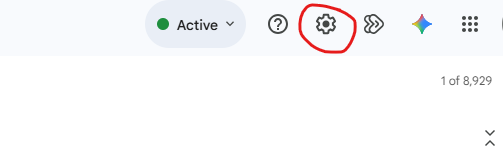
Click the Settings (gear) icon at the top right of your Gmail screen.
-
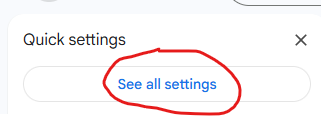
Select See all settings.
-
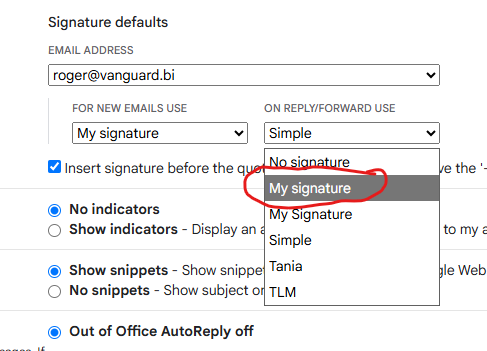
Scroll down to Signature defaults. Under ON REPLY/FORWARD USE, select My signature from the dropdown. If you see more than one signature named “My signature”, pick the first one.
-
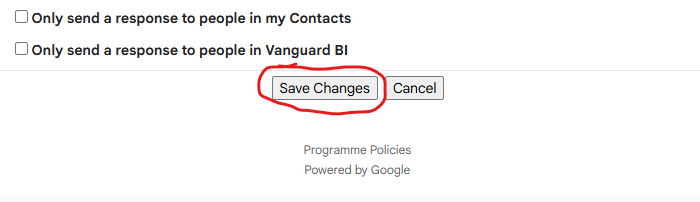
Scroll to the bottom of the page and click Save Changes.
That’s it! Your signature will now be added to every reply and forward you send from Gmail.
Having trouble? Email us at support@vanguard.bi and we’ll help you out.