
Vanguard BI
How to Update Your Email Signature on HubSpot
- HubSpot
Need to refresh your HTML email signature on HubSpot? Not to worry! Here’s how you can do it in just 8 easy steps.
-
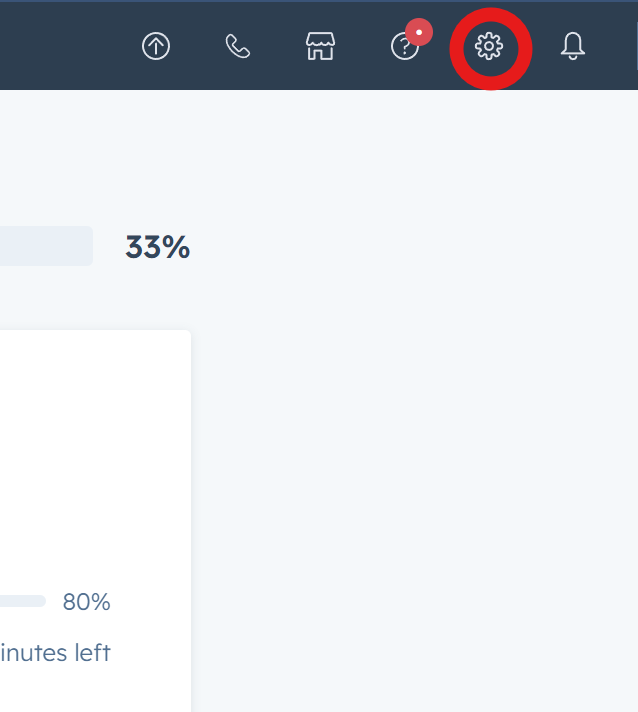
In your HubSpot account, click the settings icon in the top navigation bar.
-
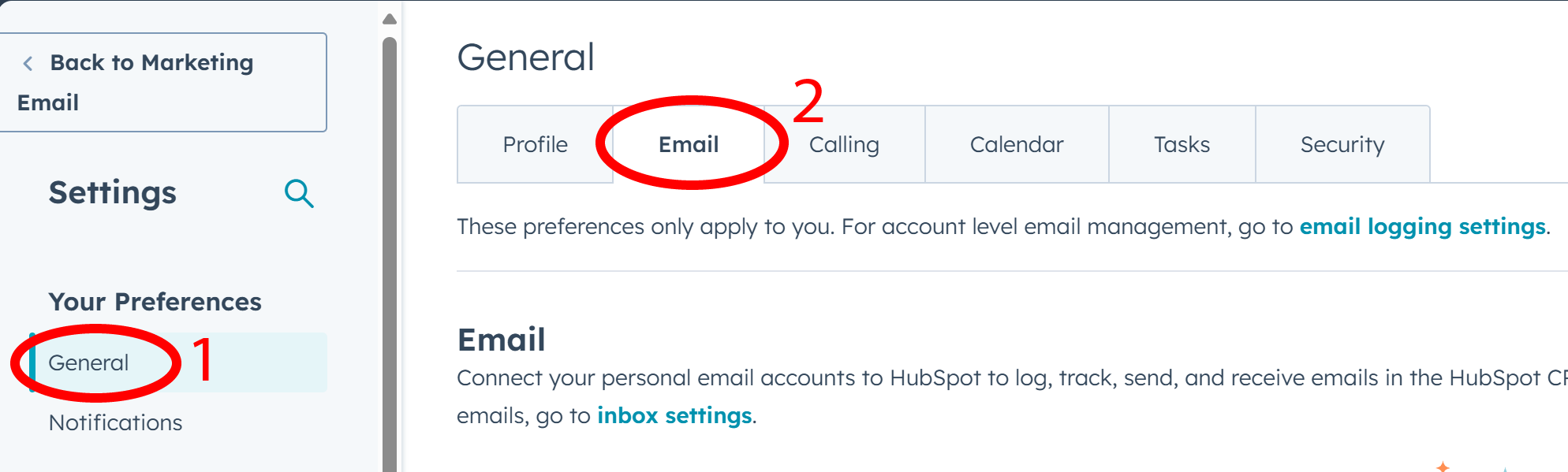
In the left sidebar menu, navigate to General.
-
Click the Email tab.
-
In the Configure section, click Edit email signature.
-
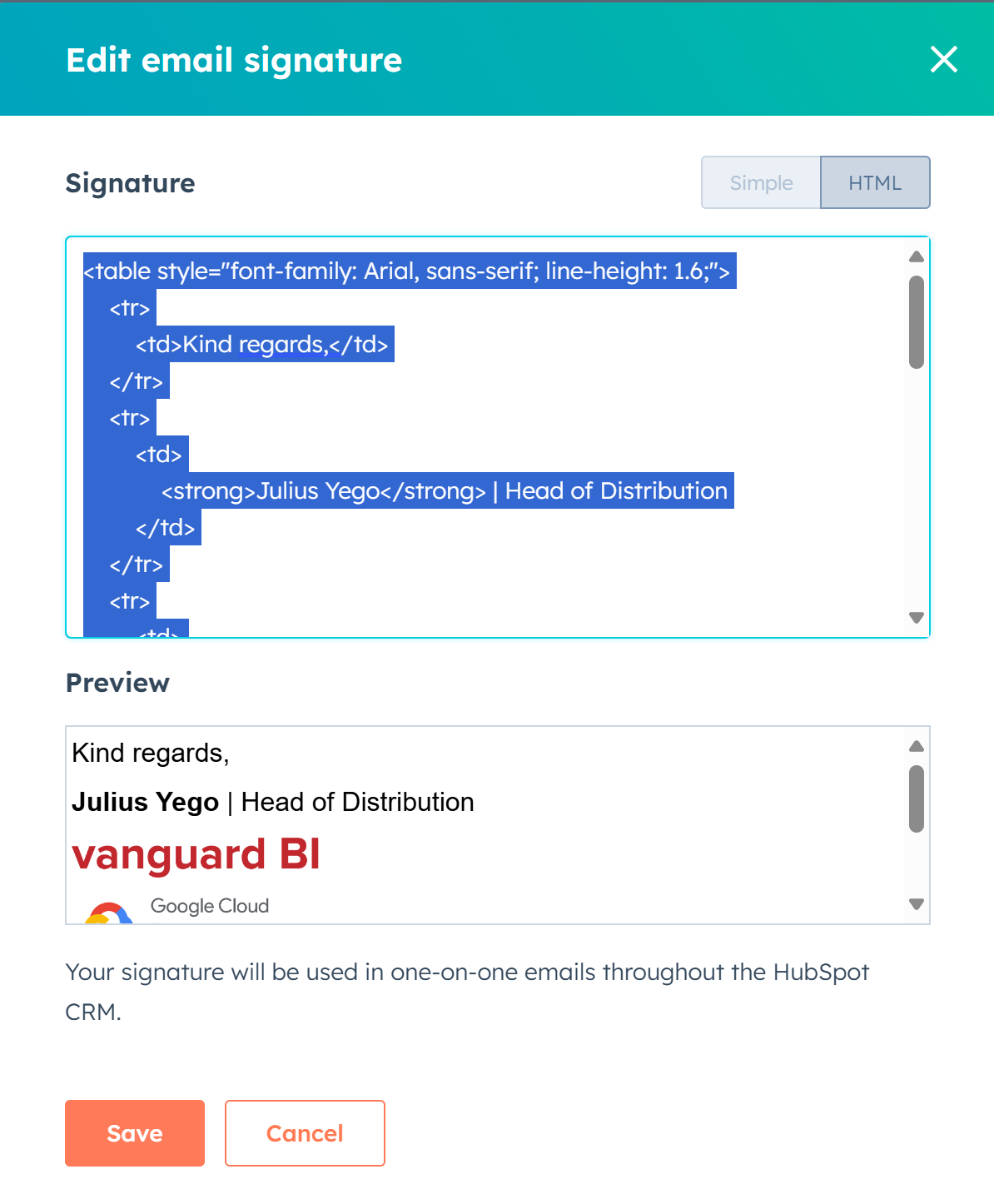
Click inside the text box provided and type Ctrl + A. This will select your entire email signature.
-
Press Ctrl + X to cut. This will remove it from the screen. Then, press Ctrl + V to paste it back in.
-
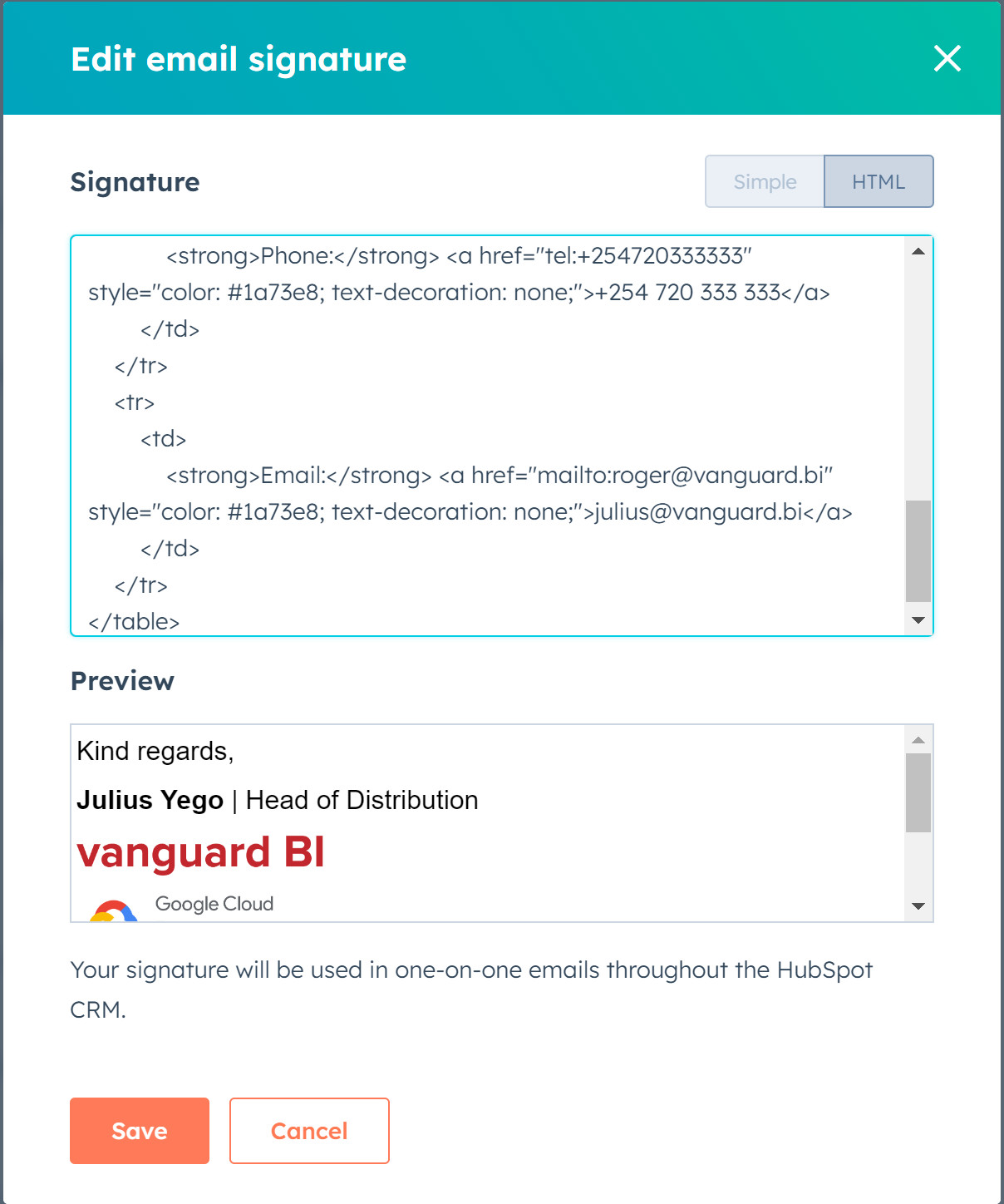
See the Preview window. It should now show your updated email signature.
-
Click Save.
Hooray! You are done.