
Vanguard BI
How to Set Up Your HTML Email Signature on HubSpot
- HubSpot
Creating a professional email signature is essential for leaving a lasting impression in your communications. In this guide, we’ll walk you through the steps to set up your HTML email signature on HubSpot, ensuring it reflects your brand’s identity seamlessly.
Copying your new email address
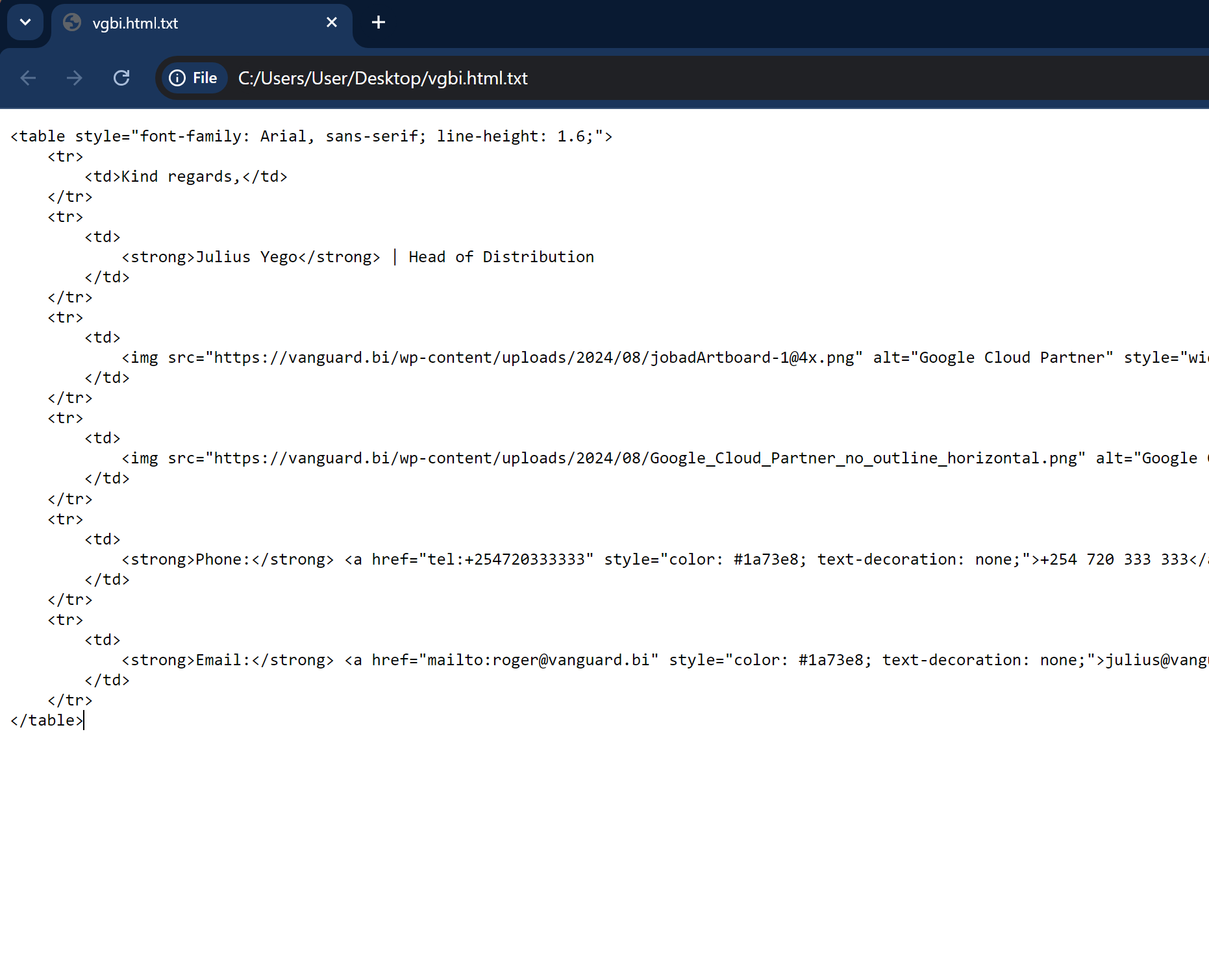
- Click on the link shared with you to open your email signature.
- Click on any white space in this tab.
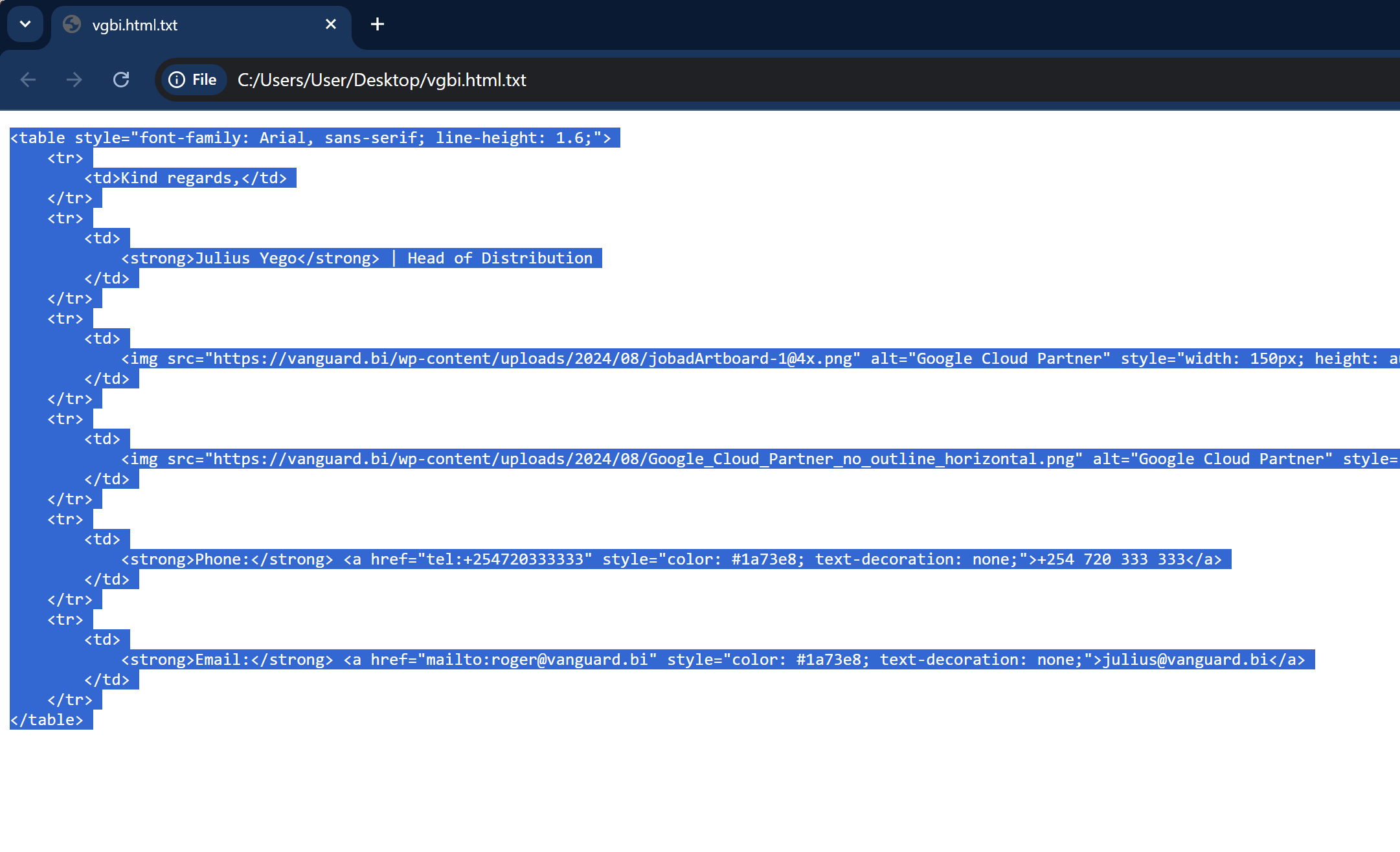
- Press Ctrl + A if you’re on Windows, or Command + A if you’re on a Mac. This will highlight the whole signature. Then, press Ctrl + C to copy the signature.
Setting it up on HubSpot
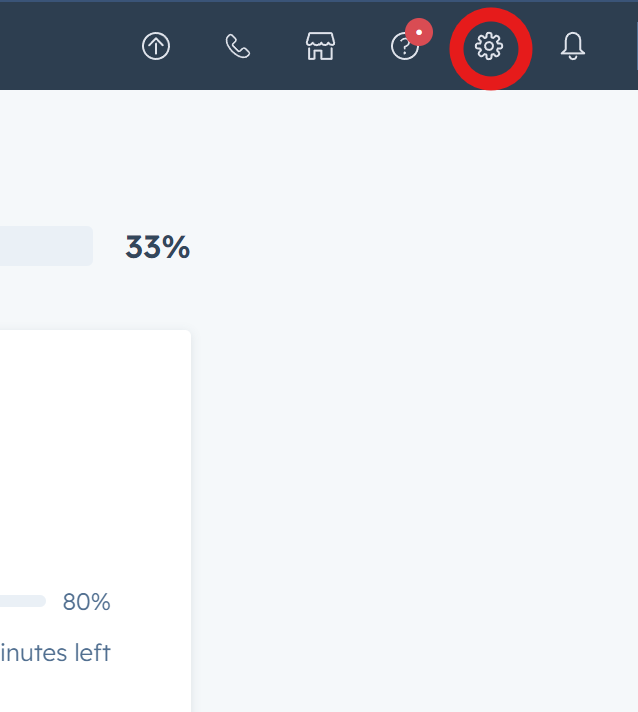
- In your HubSpot account, click the settings icon in the top navigation bar.
- In the left sidebar menu, navigate to General.
- Click the Email tab.
- In the Configure section, click Edit email signature.
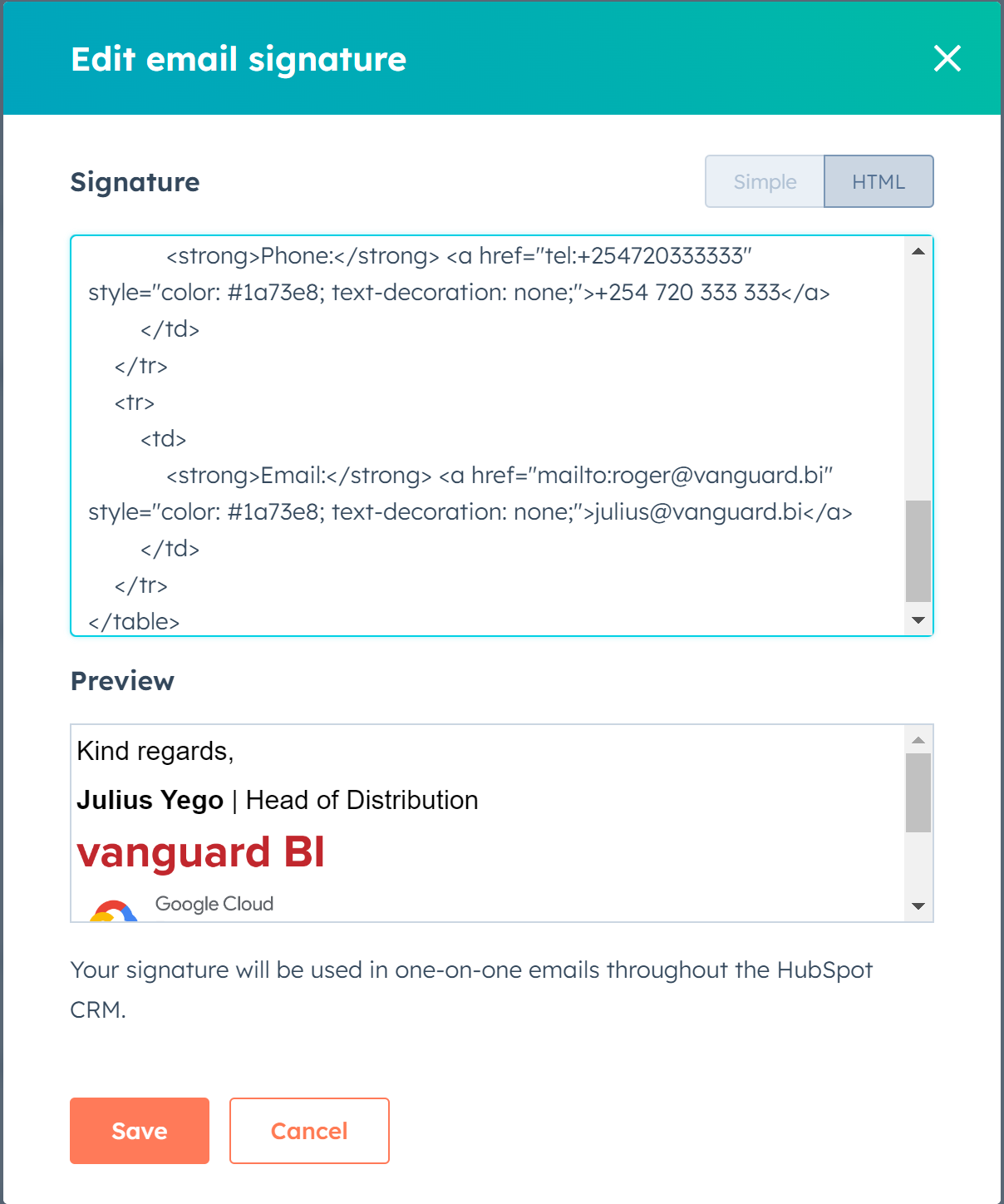
- Click HTML.
- Paste your signature into the box provided. You can do this by right-clicking in the signature box, then selecting Paste.
- Click Save.
Hooray! You are done.